
Finally moved on from my Palm Tungston to the Palm Centro. Whoa! Way cool. Now we get to figure this puppy out.
First hurdle: Change the username on the device to sync with the existing Palm desktop. This will load the Tungston's data on the Centro. Not an easy task.
1. Enter Memopad:
Press the Home key
Select Main catagory
Click icon
2. Select New.
3. As the only line on the new memo, enter:
Type "Shortcut . 5"
*** For Shortcut, press and hold Alt, select character
*** Don't type the spaces
4. Hotsync.
Saturday, June 21, 2008

Wednesday, May 14, 2008
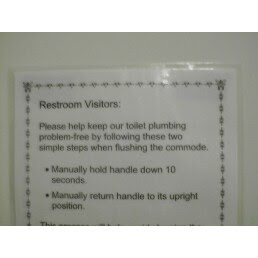
Potty Instructions
Here's a picture I had in my Drafts folder.
Instructions found in a toilet stall in a men's room at the Missouri Supreme Court Building in Jefferson City, Missouri. Basically, "Hold handle 10 seconds. Manually return handle to original position." Effectively, "We're not smart enough to fix the toilet, and too cheap to replace it."
PS: Blogger changed the way pictures are posted. Now, they all go to Drafts and its up to the operator to post them online. Inconveinent. Oh well.
Saturday, April 12, 2008
Sunday, April 06, 2008

Turn XP Home into Professional
This is one of the wildest Windows hacks I have ever come across. I got a new laptop a few months ago (my first one in years-- employers have always issued them in the past) so I swapped system units with one of my kids. He got the year old HP, I took his two and a half year old Compaq.
His had XP Home, so several features would not work. I came across Wade's Geekport article on changing XP Home to Professional. To my amazement, it worked.
To summarize:
But here's the real trick. After the BIOS screen, start pressing F8 to enter recovery mode. Select Last Known Good Configuration (LNG) and let the system recover. Log in, and check the system properties.
His had XP Home, so several features would not work. I came across Wade's Geekport article on changing XP Home to Professional. To my amazement, it worked.
To summarize:
regeditAdd a new DWORD:
My Computer
HKEY_LOCAL_MACHINE
System
ControlSet00X (highest number)
Control
ProductOptions
Brand = 0Reboot.
But here's the real trick. After the BIOS screen, start pressing F8 to enter recovery mode. Select Last Known Good Configuration (LNG) and let the system recover. Log in, and check the system properties.
Saturday, April 05, 2008

Friday, March 28, 2008


Friday, March 21, 2008
Linux iSCSI Howto
Now that I am working with VMWare Virtual Infrastructure 3, I've had a crash course in iSCSI storage. As a result, I've been working on implementing iSCSI in my own "datacenter" (ie: basement) The first step (paradoxically) was to connect a Linux client to an existing host. Luckily, I'm able to use the companies datacenter resources for R&D.
It took several howto's and hacking around, but once I found all the pieces, it was actually quite simple. Using Fedora 6 as a base, the first step was to install the iSCSI RPMs:
In the /etc/iscsi directory are two files. We need to add the host IP and port as the first two directives of the iscsid.conf.
Now I see the LUNs, but what about the devices? An fdisk -l sees the .110 NAS which was defined, but not the .131 NAS, which was discovered. We could be reboot, but this is Linux, not Windows! Let's try:
Set the service to start at boot time, and we are in business:
It took several howto's and hacking around, but once I found all the pieces, it was actually quite simple. Using Fedora 6 as a base, the first step was to install the iSCSI RPMs:
lsscsi(lsscsi may not be necessary, but let's be safe for now)
iscsi-initiator-utils
In the /etc/iscsi directory are two files. We need to add the host IP and port as the first two directives of the iscsid.conf.
isns.address = 172.16.1.110Next, change initiatorname.iscsi to contain the name defined on the host.
isns.port = 3260
InitiatorName=iqn.2007-09.vm.vi3:esx7Start the service and execute a sendtargets request:
# service iscsi start(Yes, the IP's are different. For some reason, I have to initiate to one NAS in order to connect to the other.)
# iscsiadm -m -discovery -t sendtargets -p 172.16.1.131
Now I see the LUNs, but what about the devices? An fdisk -l sees the .110 NAS which was defined, but not the .131 NAS, which was discovered. We could be reboot, but this is Linux, not Windows! Let's try:
# service iscsi restartWhoa! Look at all that output. Another fdisk -l now sees the devices.
Set the service to start at boot time, and we are in business:
# chkconfig iscsi on
Thursday, March 06, 2008
Trillian, Firefox, Yahoo Mail, and Vista
What a mess... The proverbial "perfect storm". Here's the story:
The Trillian client is a program that aggregates several IM protocols. Great little tool. When it recognizes mail in Yahoo or Hotmail accounts, it reports, and allows one click access to the webmail screen. A few weeks ago, this feature stopped working, after a Firefox upgrade.
I thought it was Firefox, but as it turns out, its Vista. (Surprise, surpise, surprise.) The way Trillian provides access to the webmail screen is by creating an HTML document that redirects to Yahoo Mail. The HTML contains the authentication information (most likely as arguments to a CGI post.) Trillian then hands the HTML document to Firefox, who spawns a new tab. Since the failure, Firefox reports "file not found".
The problem is that Vista has set read only permissions on:
C:/Program Files/Trillian/users/default/cache
By setting the permissions for "everyone" "Full Access", the problem is resolved.
How do we do it?
1. Browse to the default folder and right click on cache.
2. Select Properties and the Security tab.
3. In the Groups or User names pane, highlight Users and click Edit.
4. In the pop-up window, again select Users and check Full control.
5. Click OK and OK to exit both windows and close the default window.
The Trillian client is a program that aggregates several IM protocols. Great little tool. When it recognizes mail in Yahoo or Hotmail accounts, it reports, and allows one click access to the webmail screen. A few weeks ago, this feature stopped working, after a Firefox upgrade.
I thought it was Firefox, but as it turns out, its Vista. (Surprise, surpise, surprise.) The way Trillian provides access to the webmail screen is by creating an HTML document that redirects to Yahoo Mail. The HTML contains the authentication information (most likely as arguments to a CGI post.) Trillian then hands the HTML document to Firefox, who spawns a new tab. Since the failure, Firefox reports "file not found".
The problem is that Vista has set read only permissions on:
C:/Program Files/Trillian/users/default/cache
By setting the permissions for "everyone" "Full Access", the problem is resolved.
How do we do it?
1. Browse to the default folder and right click on cache.
2. Select Properties and the Security tab.
3. In the Groups or User names pane, highlight Users and click Edit.
4. In the pop-up window, again select Users and check Full control.
5. Click OK and OK to exit both windows and close the default window.
Subscribe to:
Posts (Atom)